Screenshot anything —
even whole long pages.
GeekCapture is a free Windows screenshot tool: press a hotkey, drag to grab any part of your screen, mark it up, and copy or save. And when the content is taller than your screen, capture it while scrolling — the frames stitch into one seamless tall image.
The build isn't code-signed yet, so Windows SmartScreen may warn on first run — click More info → Run anyway. Everything runs locally; nothing is uploaded.
What it does
Capture while scrolling
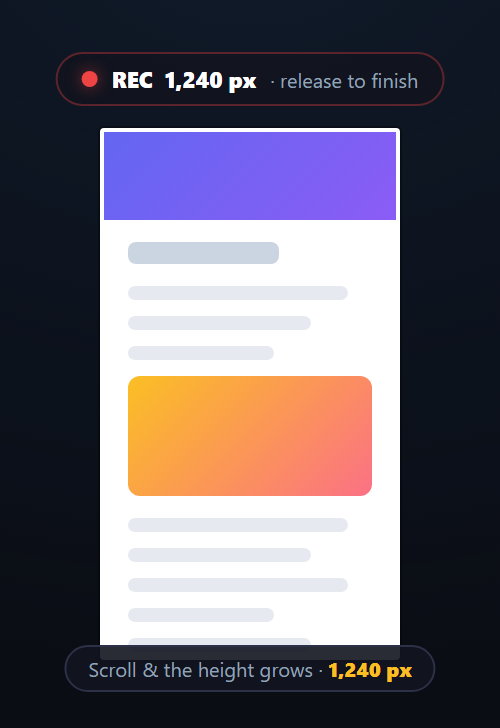
The feature most tools miss. Drag out a region, then — still holding the button — scroll the wheel; GeekCapture stitches every frame into one long image. Perfect for chats, articles and dashboards.
Hotkey → drag → done
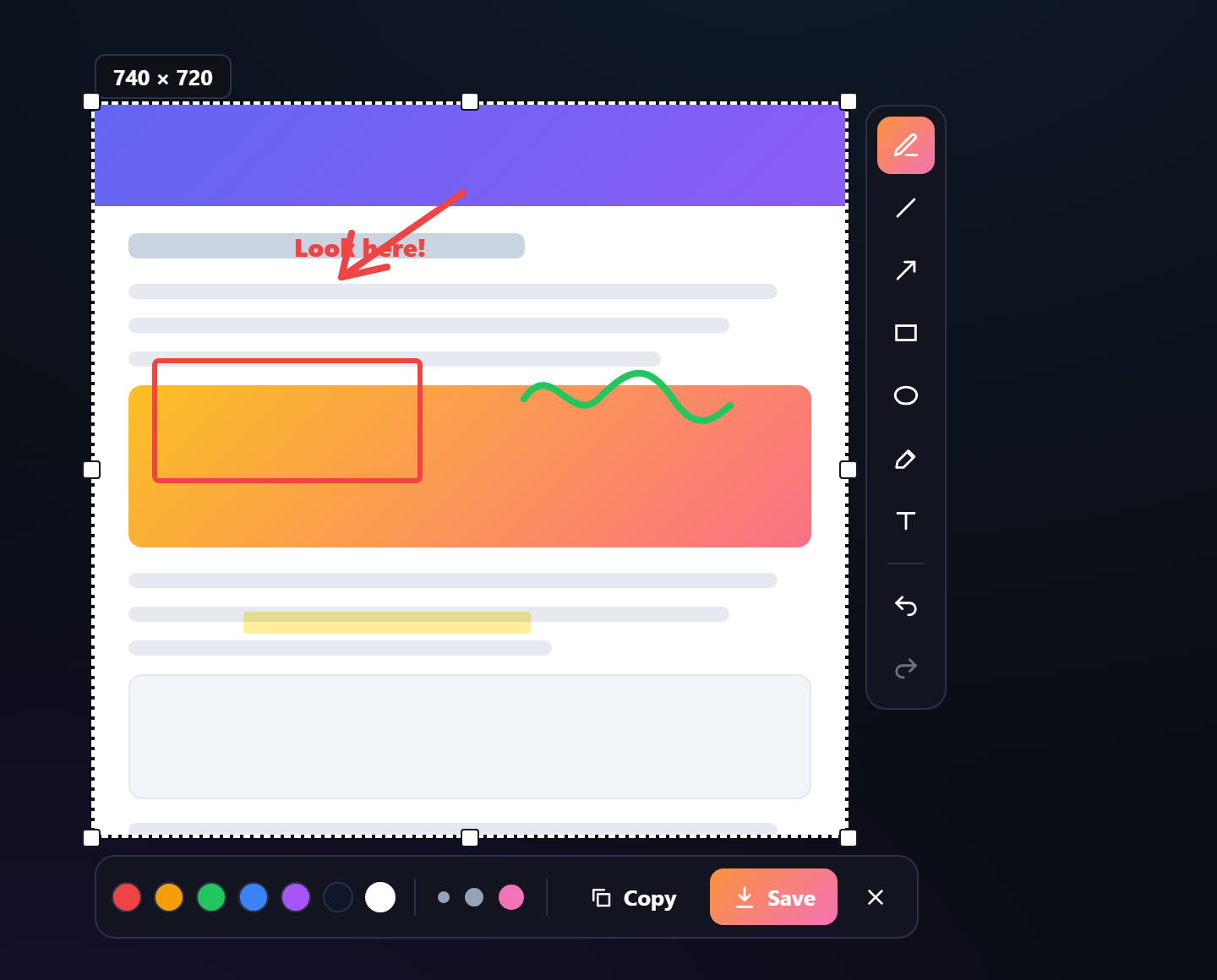
Press your hotkey and the screen freezes — nothing underneath moves or autoplays while you aim. Drag a rectangle with live dimensions, then resize it after. Works across all your monitors.
Annotate fast
Pen, line, arrow, rectangle, ellipse, highlighter and text — with colors, stroke widths and undo/redo. Then copy or save.
Copy or save instantly
One click copies to the clipboard or saves a PNG. Optionally auto-copy every capture the moment you take it.
Lives in your tray
Runs quietly in the system tray, ready for the next capture. Set a custom hotkey and start-at-login in Settings.
100% offline & private
No account, no cloud, no telemetry. Every capture stays on your machine — nothing is ever uploaded.
See it in action
How scrolling capture works
Drag the region
Press your hotkey and drag out the area you want to capture.
Hold + scroll
Keep the mouse button held and roll the wheel — at any speed. The page scrolls and frames stitch live; duplicates are ignored.
Trim & save
You get one seamless tall image. Resize the crop if you like, then copy or save.